How to Get Started
Here is a step-by-step guide to starting your first lesson.
Introduction
What You Need
Getting started with Curious World is simple. You only need the following:

Computer / Tablet

Internet Connection
Webcam & Headset
Step 1: student Registration
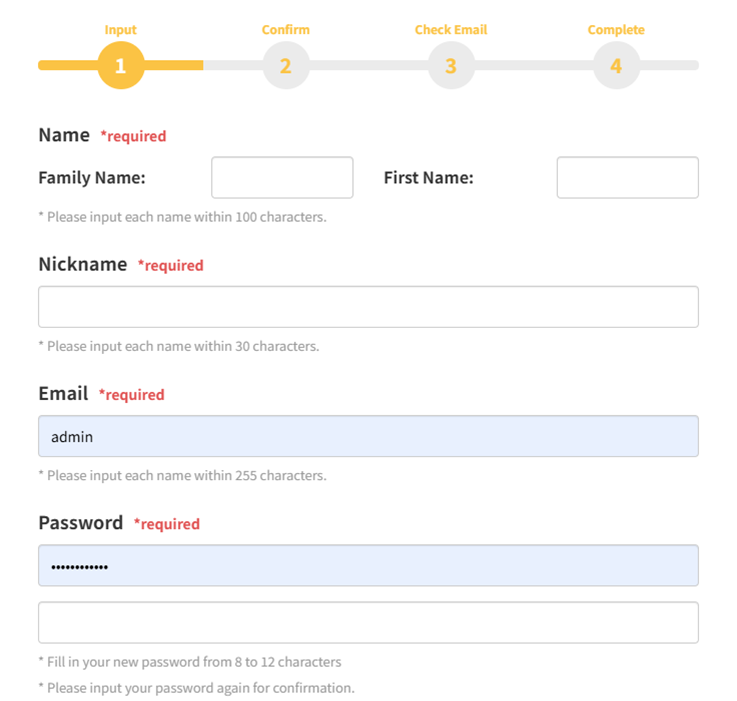
1. Enter your information on the Registration Page
Go to the Registration Page and enter your name, nickname, email address, and password, then click register. You will receive a confirmation email. Click the verification URL in the email to complete your student registration.
2. Log in to your account (My page)
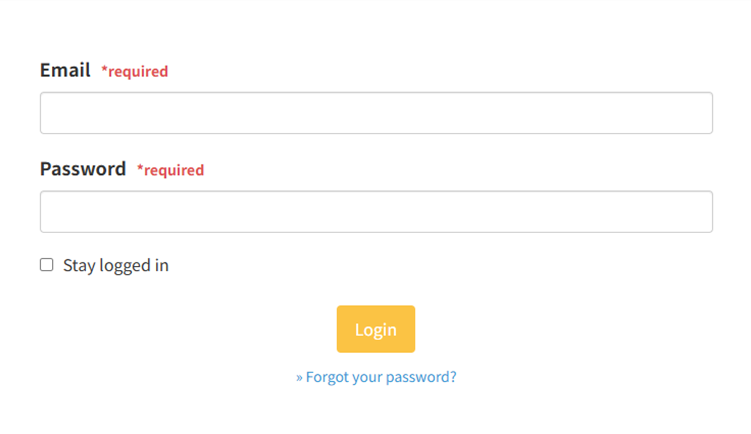
Once registration is complete, log in to your account (My page) from the Login Page! After logging in, you will see announcements from the administration. Please check regularly for daily updates.
3. Register your Profile
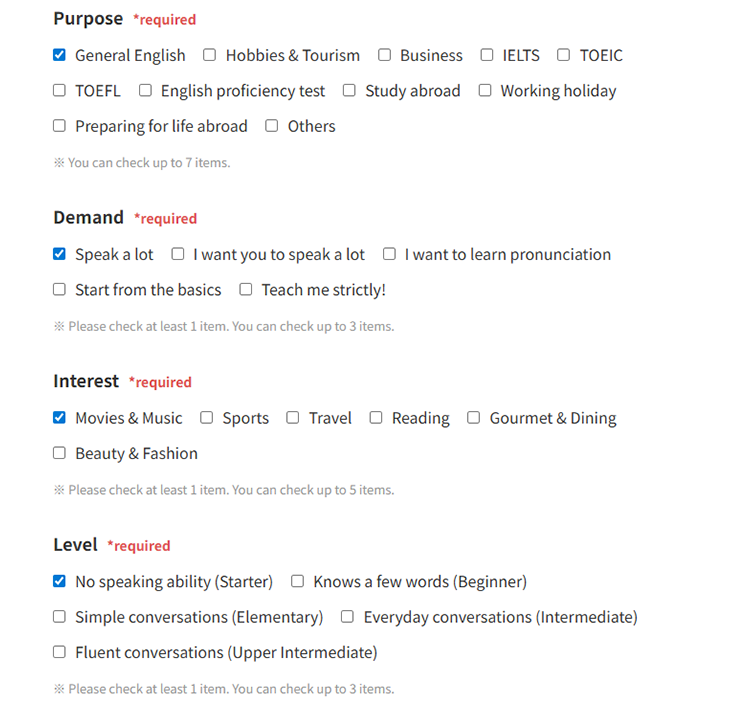
When you log in for the first time, the profile registration screen will appear. Please fill in your information. You cannot book lessons if your profile is incomplete. This information helps our teachers tailor the lesson to your needs. Providing more details will make your lesson time even more effective.
Step 2: Purchase Points
1. Select a Plan on the Credit Card Payment Page
To take lessons at Curious World, you need to purchase points. You can do this from the Payment page after logging in. We offer various pricing plans, so please choose the one that best suits your needs. For more details on the pricing structure, please visit our Pricing Plan page.
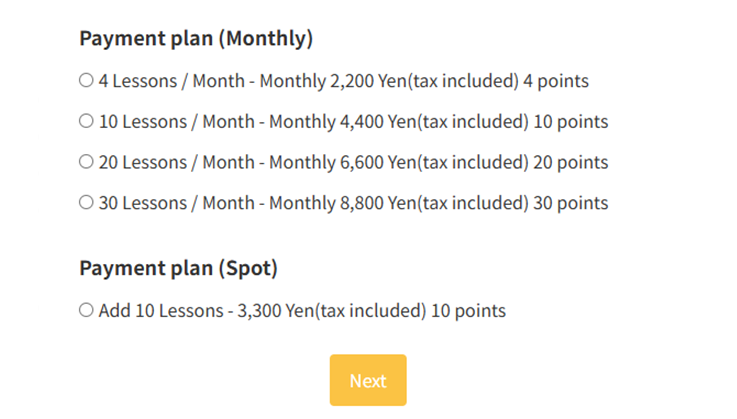
*Prices shown are examples.
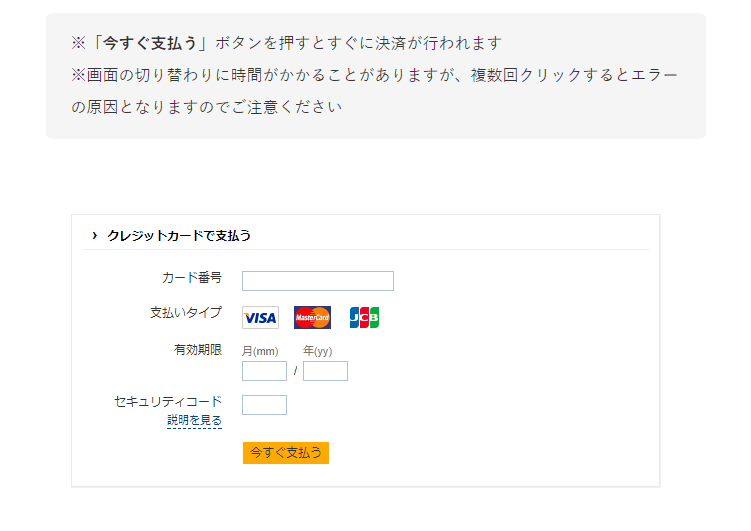
2. Enter Credit Card Information
After confirming your selected plan, click "Proceed to Payment." Enter your credit card details in the form. Curious World accepts VISA, MasterCard, and JCB.
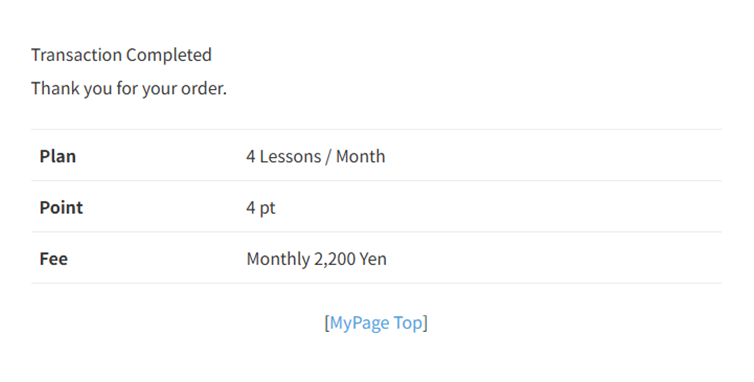
3. Points Acquired
Once your card is registered and the screen displays a confirmation, your purchase is complete. You can check your point balance at the top of your My Page. You will now use these points to book sessions on the teacher schedules.
Step 3: Lesson Reservation
1. Book by Date/Time
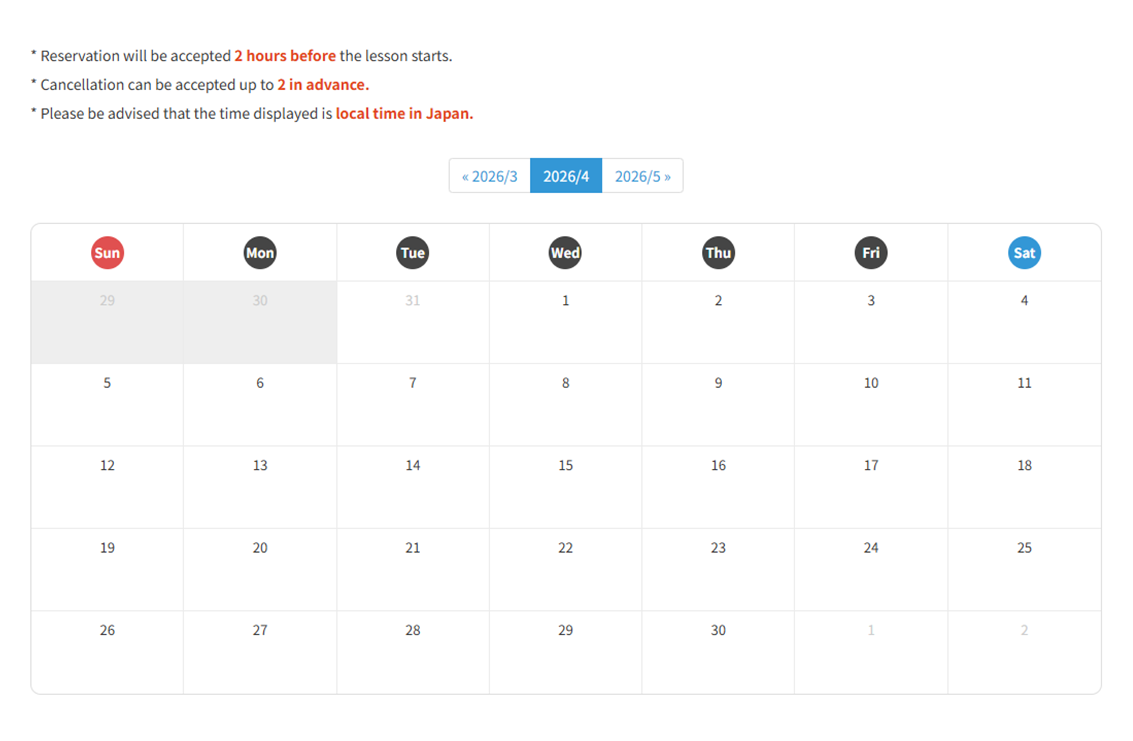
You can book lessons via the [Search by Schedule] or [Search by Teacher] sections on My Page. If booking by schedule, select your preferred date and time from the calendar. Then, a list of available teachers for that slot will appear. You can select which teacher you'd like to book.
2. Book by Teacher
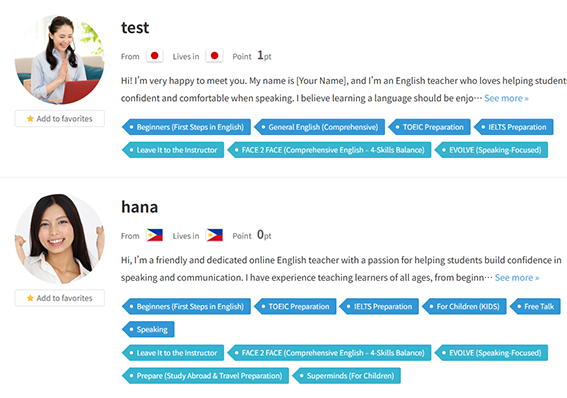
Our teachers are experienced and come from diverse backgrounds. Click [Search by Teacher] and find a teacher that matches your goals. You can filter by tags or save teachers to your favorites. You can book directly from the calendar shown on the teacher's profile page.
3. Reservation Completed
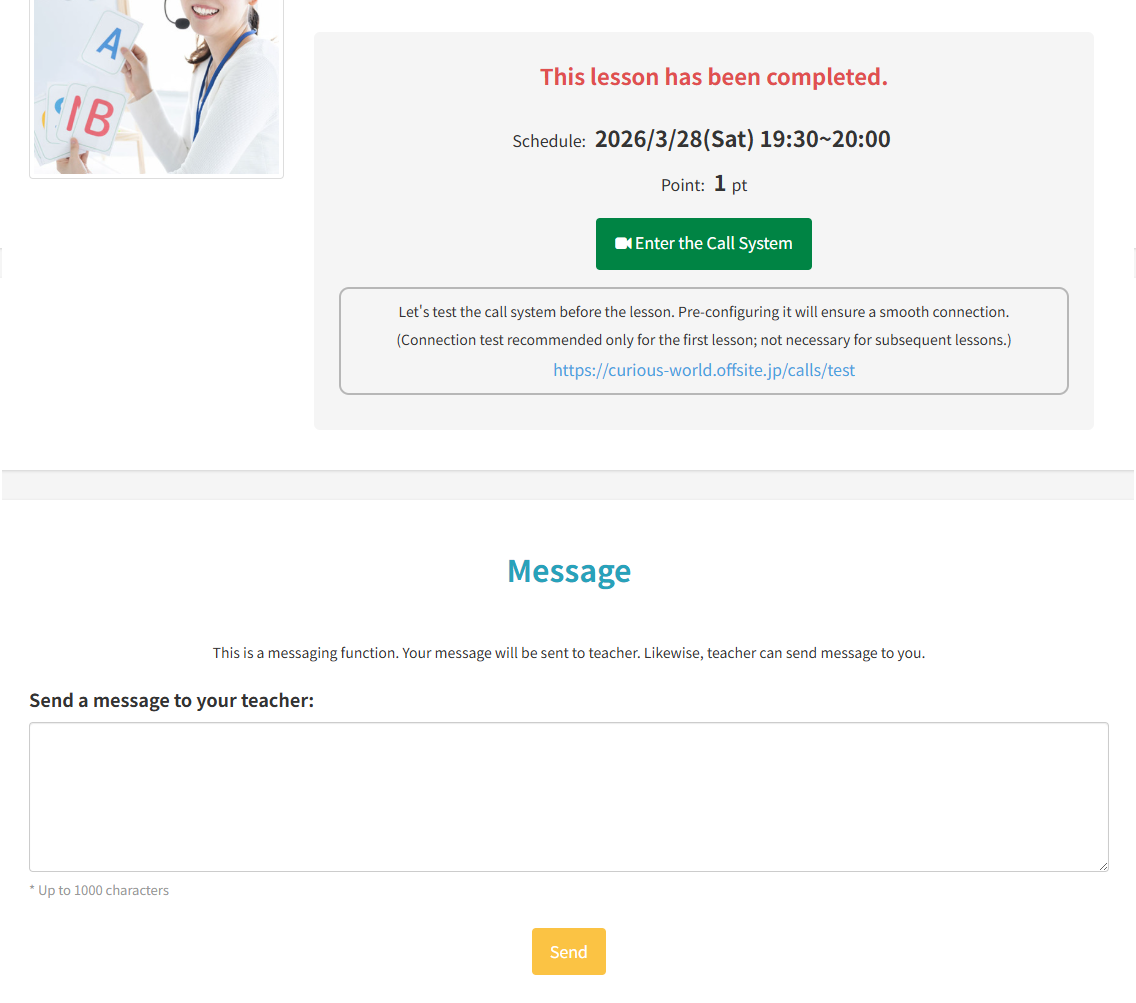
You will receive a confirmation email once your reservation is complete. You can also send messages to your teacher via the lesson details page. We recommend sending a message in advance to explain what you'd like to focus on. If you run out of points, please purchase more from the point purchase section.
- Reservations can be made up to 2 hours before the lesson starts.
- Cancellations made at least 2 hours before the start time will not be charged.
- Please note that cancellations made within 2 hours of the start time will be subject to a fee.
Starting Your Lesson
1. Check Your Video and Microphone on First Entry
When you open the Bellbird URL, the camera and microphone settings screen will appear only the first time. (This step is not required from the second time onward.)
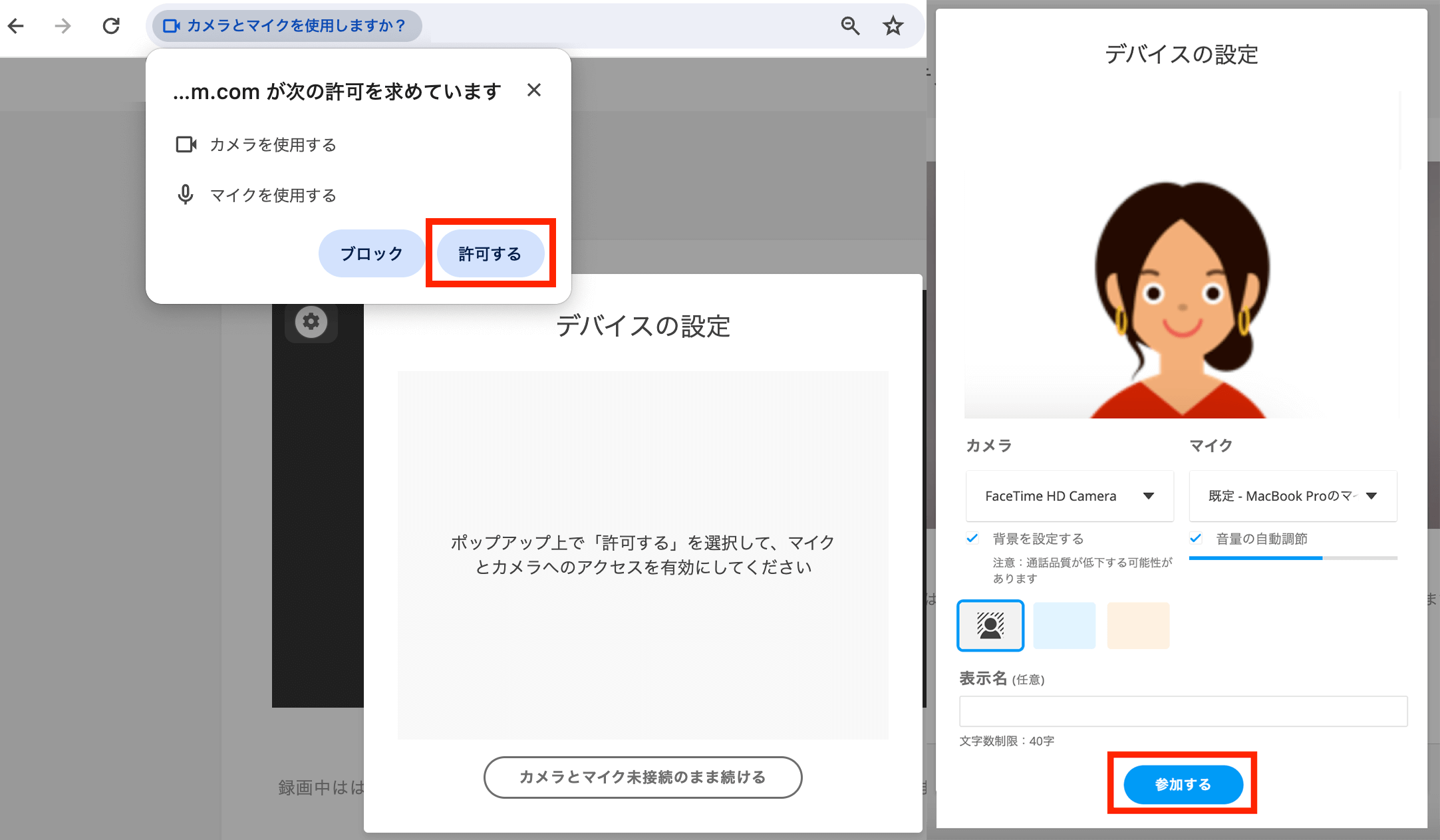
- If a popup appears saying that the “site URL” is requesting permission, click “Allow.”
- On the “Device Settings” screen, confirm that “you can see yourself” and that “the audio level indicator is moving,” then click “Join.”
2. Enjoy Your Lesson!
Once your camera and microphone are set up, your lesson begins!
Bellbird offers many useful features for online lessons, such as screen sharing and chat.
We hope you enjoy a fulfilling lesson experience.
After the Lesson
Lesson Completion Report
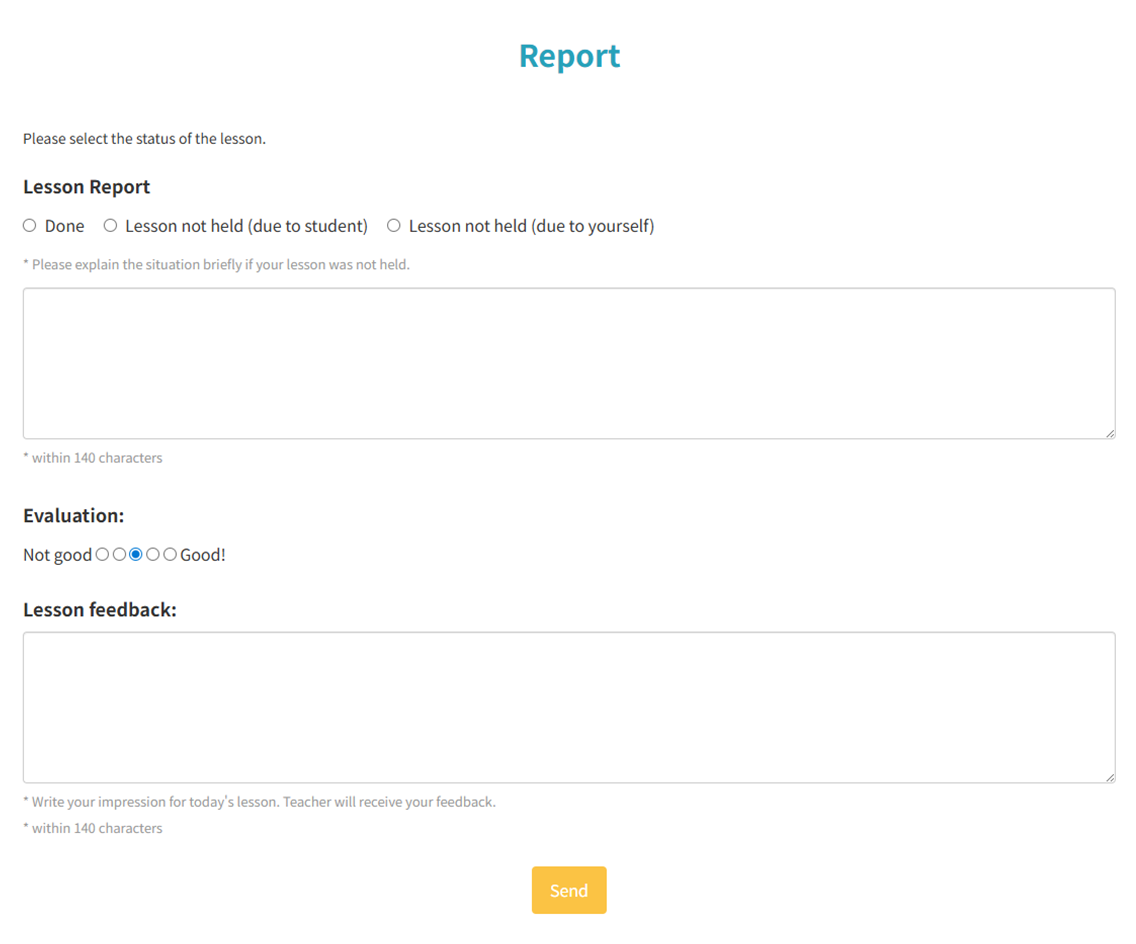
After the lesson, please submit a "Completion Report" from your lesson history on My Page. There are three types of reports:
- "Completed": The lesson was conducted without issues.
- "Not Conducted": The teacher did not attend.
- "Trouble": You were unable to join the lesson.
Select the appropriate status, enter your feedback/rating, and click "Submit Report." Reports must be submitted within a day (24 hours) after the lesson ends. If not submitted within a day , the status will automatically be set to "Completed." You can also leave a review for the teacher in the lesson history.
Other My Page Features
Memo Function
There is a memo section on your My Page where you can write freely. Use it for notes for your next lesson or to track your language goals.